JSTalk, Acorn and iPhone Screen shots
One aspect of developing iPhone applications that I've spent a fair bit of time on is preparing screenshots - for the tutorial in the app, for marketing purposes and to capture the evolution of the look and feel of my apps.
My workflow has always been something like:
- Capture a screenshot in the simulator (using SnapNDrag)
- Save the file to a directory
- Spend countless [minutes|hours] manually cropping and saving files to get rid of the simulator chrome
Why the simulator? Because I have a complete set of mocked up data appropriate for marketing purposes.
Recently I've been experimenting with JSTalk, evaluating it for inclusion in my upcoming desktop product. I'm a huge fan of Acorn. So much so that I haven't installed PhotoShop on my newly repaved (with 10.6) macbook pro. With the release of Acorn 2.0, JSTalk is embedded, so the following script does exactly what I need.
// Note, this requires the Acorn JSEnabler plugin to be installed.
// http://code.google.com/p/flycode/source/browse/trunk/jstalk/extras/acornplugin/
// Take a standard full window screen shot of the iPhone simulator and crop it to just the content area
function pathByAppendingString (path, aString)
{
    var fileName = [path lastPathComponent];
    var extension = [fileName pathExtension];
    var baseName = [fileName stringByDeletingPathExtension];
    var path = [path stringByDeletingLastPathComponent];
    return [[path stringByAppendingPathComponent: (baseName+aString)] stringByAppendingPathExtension: extension];
}
var acorn = JSTalk.application_("Acorn");
var firstDoc = acorn.orderedDocuments().objectAtIndex_(0);
var cropRect = NSMakeRect(33, 129, 320, 480);
firstDoc.cropToRect(cropRect);
var fileURL = [firstDoc fileURL];
var outputFile = pathByAppendingString([fileURL path],"-cropped");
firstDoc.dataRepresentationOfType_("public.png").writeToFile_(outputFile);
firstDoc.undoManager().undo();
You start with this:
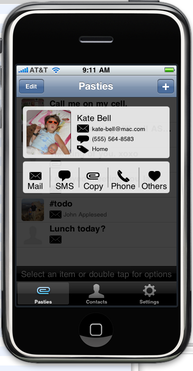
and end up with this:

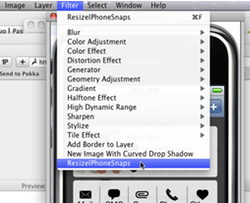
Finally, if you add the script to your ~/Library/Application Support/Acorn /Plug-Ins folder (and restart Acorn) - ResizeIPhoneSnaps will appear in your filter menu. Thusly.